Health status at a glance
A single label (Good, Caution, Bad or Unknown) summarises each drive's S.M.A.R.T. data, so you know straight away whether anything needs attention.
CrystalDiskInfo delivers precise insights into HDD and SSD health, providing essential S.M.A.R.T. diagnostics, temperature readings, and drive condition assessments for informed storage monitoring.
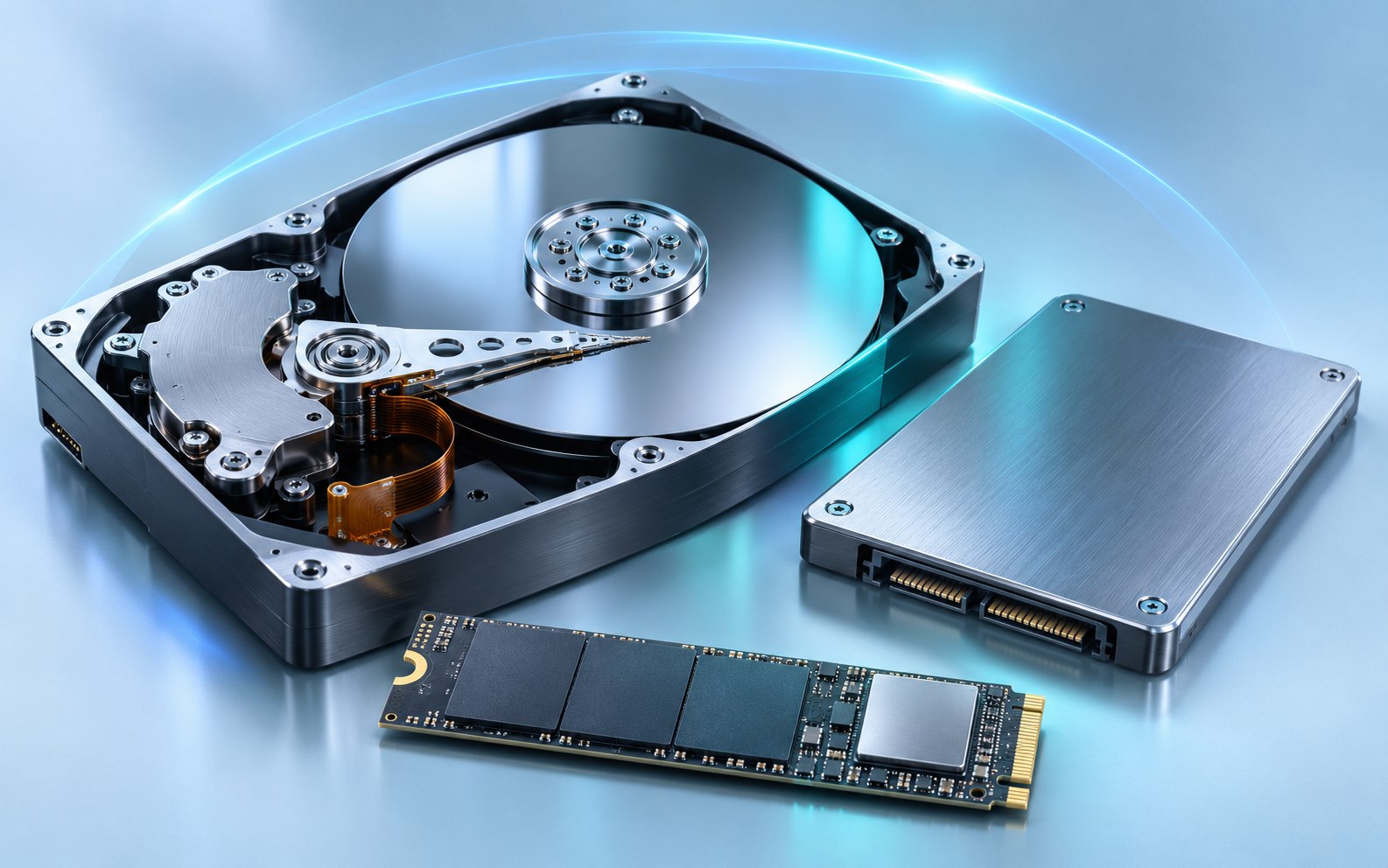
Every modern hard drive and SSD tracks internal counters, including sector errors, power-on hours, temperature and wear. This system is called S.M.A.R.T. CrystalDiskInfo reads those counters and presents them in one window, with a simple status label on top and every detail underneath.
It is developed by Crystal Dew World, and its source code is published on GitHub. People use it to check whether a drive is healthy, to keep an eye on aging hardware and to get an early warning before small problems become data loss.
Everything you need to judge a drive's condition, from a one-word summary to raw attribute values.
A single label (Good, Caution, Bad or Unknown) summarises each drive's S.M.A.R.T. data, so you know straight away whether anything needs attention.
Every attribute is listed with its current, worst, threshold and raw values, for example reallocated sectors, pending sectors and power-on hours.
See the temperature each drive reports, which helps you catch airflow problems in desktops, compact cases and laptops.
Supports PATA and SATA drives, with partial support for USB, NVMe and RAID controllers such as Intel RST, Intel VROC and AMD RAIDXpert2.
Keep the tool running in the notification area and get alerted when a status changes, with alert mail and event log options.
Adjust acoustic and power management on drives that support it, and view attribute history in the built-in graph.
CrystalDiskInfo does the reading and interpreting. You just need to run it and look at the results.
Get the CrystalDiskInfo files from the download section. Our button links to the GitHub repository archive.
Extract the ZIP completely, or use the developer's installer if you prefer a ready-made build.
Start the program and allow the administrator prompt. Connected drives are detected and listed automatically.
Review each drive's status, temperature and attributes, then enable alerts or back up if something looks wrong.
Based on the system requirements published on the developer's project page. Check there for the latest details before installing.
Windows XP, Vista, 7, 8/8.1, 10 and 11 are listed by the developer. The installer is not supported on XP.
Windows Server 2003 through 2025 is listed. Server Core is not supported.
x86, x64 and ARM64 builds are listed on the project page.
NVMe support requires Windows 10, Windows Server 2016 or later.
.NET Framework 4.8 is needed for the latest email notification features. Internet Explorer 8 or later is also listed.
PATA and SATA are supported. USB, NVMe and some RAID controllers have partial support.
Everyday situations where a quick look at S.M.A.R.T. data helps you make a better decision.
Look at power-on hours, reallocated sectors and overall status before trusting second-hand hardware with your data.
Track whether warning attributes stay stable or keep rising, so you can replace an older HDD before it fails.
Many SSDs report a remaining-life indicator. Checking it now and then shows how much rated endurance has been used.
Compare idle and busy temperatures to find poor airflow in compact cases, laptops or crowded drive bays.
Read S.M.A.R.T. data from USB drives whose enclosures pass it through, which is useful for backup disks.
A quick health check is a sensible first step when a PC is slow, freezing or making unusual drive noises.
Storage usually fails gradually, and most of that decline is recorded in S.M.A.R.T. data long before files go missing. CrystalDiskInfo makes that information easy to see, so you can plan backups and replacements on your own schedule instead of during an emergency.
Gradual wear often appears in S.M.A.R.T. data before you see symptoms, which gives you time to back up.
A clear status label means you don't need to interpret raw numbers to know whether to act.
CrystalDiskInfo is free to use, so health checks don't need a budget.
The source is public on GitHub under the MIT License, so anyone can review how it works.
It reads data the drive already records instead of running heavy tests on it.
Knowing a drive's condition helps you decide when to copy data off and when to replace hardware.
A careful setup takes only a few minutes. Here is what to do with the file you download from this page.
Use the main button in the download section to get the ZIP from GitHub.
Right-click the ZIP and choose Extract All. Don't run files from inside the compressed folder.
The repository archive contains source code and DiskInfo.sln. To run the program right away, use a build from the developer's project page.
Accept the User Account Control prompt. S.M.A.R.T. data can only be read with administrator rights.
Use the menus to turn on resident mode, start with Windows and the alert method you prefer.
Explore the foundation of CrystalDiskInfo with the project's source archive, available directly from GitHub. This ZIP package includes the source code and Visual Studio solution for developers who want to study, customize or build the Windows application.
Read the Download Guide
Good habits that protect both your PC and the data on your drives.
Our download button points directly to the project's GitHub repository. Hover over the button to check the address before clicking.
Low-level drive access needs administrator rights. Only approve it for files from a source you trust.
If a drive shows Caution or Bad, copy important data first, before you troubleshoot or run tests.
Newer releases add support for more drives and controllers. Update from the same trusted source.
Heavy write tests on a failing drive can speed up failure. Check health before running speed tests.
Text reports include serial numbers. Remove them before posting reports publicly.
An honest overview to help you decide whether it fits your needs.
Most issues come down to how a drive is connected or to missing permissions.
Drives behind some USB bridges or RAID controllers are not always detected. Try the USB detection options in the program's menus, another port or cable, or a direct SATA/NVMe connection.
S.M.A.R.T. data could not be read. This usually reflects how the drive is connected, not its condition. USB, NVMe and some RAID setups are only partially supported.
Back up first. Then check which highlighted attribute caused it and whether its raw value keeps changing over the following days.
The program needs administrator rights. Run it again and accept the User Account Control prompt.
The repository doesn't include the resource files. Download the CdiResource folder from the project site as described in the README.
The developer notes that .NET Framework 4.8 is required for the latest email notification features. Check your mail settings in the program too.
Quick answers about using CrystalDiskInfo, downloading it and its compatibility.
CrystalDiskInfo is used to check the health of hard drives and SSDs on Windows. It reads S.M.A.R.T. data recorded by each drive and shows a health status, temperature, drive details and a full attribute table.
Good means no monitored attribute has reached a warning condition. Caution means an attribute suggests wear and you should back up. Bad means a threshold or critical condition has been reached. Unknown means S.M.A.R.T. data could not be read.
No. CrystalDiskInfo is a monitoring tool. It reports what the drive records but does not repair sectors or recover data. If a drive shows Caution or Bad, back up your files and plan a replacement.
Yes. For SSDs it shows the same status label plus the drive's own wear-related attributes. Many SSDs report a remaining-life indicator that CrystalDiskInfo displays as a percentage.
Yes. It displays the temperature each drive reports through S.M.A.R.T. and can include it in its monitoring and history graph.
Caution usually appears when attributes such as reallocated, pending or uncorrectable sectors reach a warning level, or when an SSD reports reduced remaining life. Check which attribute is highlighted and back up your data.
Often, yes, but it depends on the USB enclosure. Some bridge chips pass S.M.A.R.T. data through and others don't. The project lists USB support as partial.
Yes. It has resident and alarm features that keep it in the notification area and alert you when a drive's status changes. Alert mail and event log options are also documented.
No. CrystalDiskInfo monitors health through S.M.A.R.T. data. CrystalDiskMark is a separate benchmark tool that measures read and write speed.
No. Reading S.M.A.R.T. data simply queries values the drive already keeps. Unlike a benchmark, it does not write large amounts of test data.
Yes. CrystalDiskInfo is free to use and is released as open-source software under the MIT License.
Yes. The source code is public on GitHub at github.com/hiyohiyo/CrystalDiskInfo under the MIT License.
The main download button links directly to the ZIP archive of the CrystalDiskInfo GitHub repository's master branch. It contains the source code and Visual Studio solution. Ready-to-run builds are offered on the developer's project page.
The developer's download pages have offered a ZIP package that runs after extraction without a setup wizard, which people often call the portable version. Administrator rights are still needed.
Yes. The developer's project page lists Windows 11 as a supported operating system, including NVMe drive support.
Yes. Windows 10 is listed as supported. Windows 10 is also the minimum desktop version for NVMe support.
No. CrystalDiskInfo is a Windows application. On macOS and Linux, other S.M.A.R.T. tools such as smartmontools are commonly used instead.
No. A website cannot read S.M.A.R.T. data from your drives. CrystalDiskInfo has to run locally on your Windows PC with administrator permission.
No. This is an independent guide and is not affiliated with CrystalDiskInfo or any other third-party platform. The project is published by Crystal Dew World at crystalmark.info and on GitHub.
Reading S.M.A.R.T. data needs low-level access to storage devices, which Windows only grants to programs running with administrator rights.